Connect Infusion Elite
Install the Tradie connector on your Infusion server so Tradie can read and update Infusion.
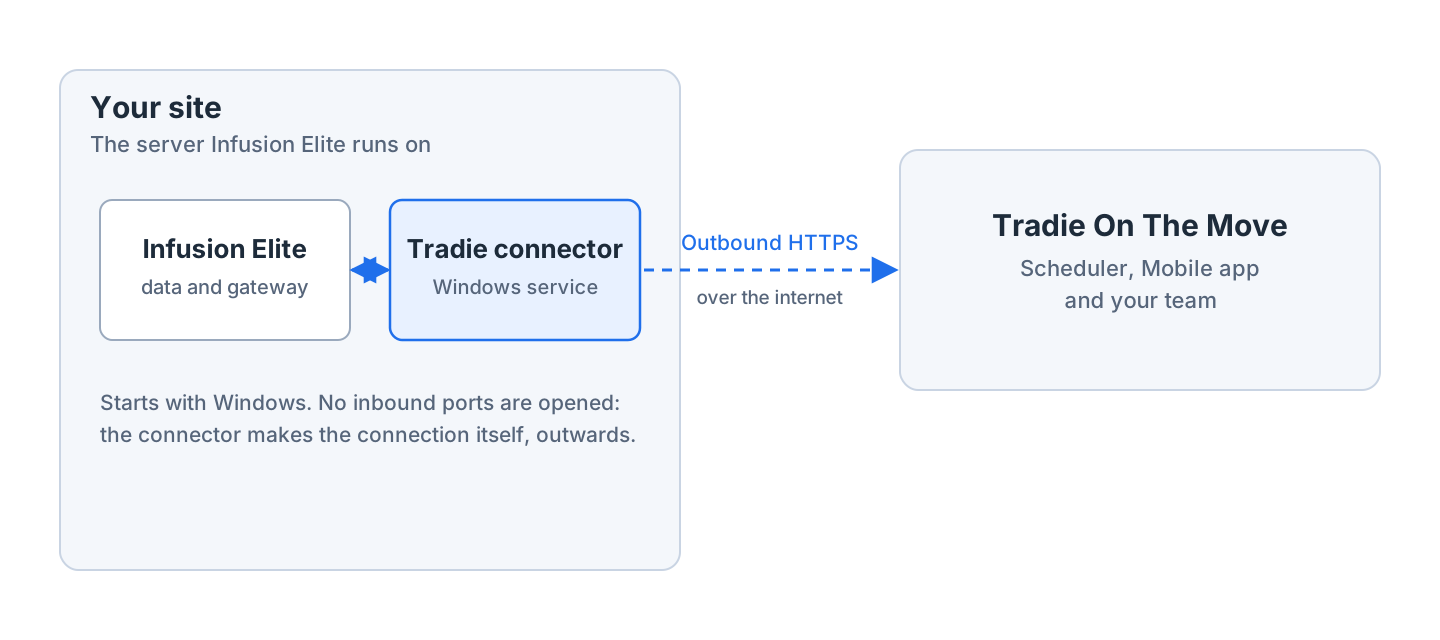
Infusion Elite runs on a server at your own site, so Tradie reaches it through a small Windows service called the Tradie connector. The connector is installed on the server that runs Infusion Elite. It connects out to Tradie over the internet, and every Tradie screen that shows or changes Infusion data goes through it. This step is normally done by your Tradie contact or reseller, with someone from your business who can sign in to the server.
Before you start
You need:
- Remote access to the Infusion server, signed in as a Windows administrator. If Infusion hosts your Elite system, they can provide this.
- The Tradie install package - a zip file your Tradie contact sends you.
- Your Customer Id - your company’s id in Tradie, also from your Tradie contact. Your company must be set up first: see Provision your business.
- The Tradie server address for the connector to connect to, from your Tradie contact.
- The Infusion details: the folder holding your Infusion data (the Infusion System Path), your ledger name, and an Infusion username and password for the connector to use.
- The Visual FoxPro OLE DB provider and the Infusion gateway on the server. Both come with
Infusion Elite and are usually already installed. If not, the provider’s installer is
VFPOLEDBSetup.msiand the gateway is registered by Infusion’sibsreg.bat. - Outbound internet access from the server over HTTPS. Nothing needs opening for incoming connections.
The connector is a self-contained program, so you do not need to install .NET on the server.
Step by step: install the connector
- Unzip the install package into its own folder on the server, for example
C:\TradieOnTheMove\<your company>. - Run
TradieDesktop.exe. The Tradie Gateway window opens. - Click Install Service….
- Enter a Service name, or keep
TradieOnTheMoveService. - Enter the Tradie server address in Tradie Server URL. It starts with
https://. - Enter your Customer Id.
- Enter the Infusion System Path, Infusion Ledger Name, Infusion Username and Infusion Password.
- Enter a Job Attachment Folder if your Tradie contact gave you one.
- Click Install, then click Yes when Windows asks to allow the change.
- Open Windows Services, find the service you just named and click Start.


From then on the service starts by itself whenever the server starts.
Check it worked
Ask your Tradie contact to confirm the connector shows as Online for your company. They can see this in the Tradie Admin app, along with the connector’s version.
You can also check it yourself once you can log in to the Scheduler. Open Infusion data sets and click Update next to Customers. If your customer list comes through, Tradie is reading Infusion.
Live job updates (optional)
Out of the box, Tradie fetches Infusion data when a screen needs it. A hook file makes Infusion tell Tradie straight away when a job is added or deleted in Infusion, so the Scheduler’s job list stays current.
Step by step: install the hook file
- In the Scheduler, open Company Info from the hamburger menu.
- Click Download Infusion Hook Files.
- Open the downloaded zip.
- On the Infusion server, open your ledger folder and create the folders
Job Hook Files\POSTSAVEif they are not already there. - Copy
tradieonthemove.FXPandtradieonthemove.INIfrom the zip intoPOSTSAVE.
The .INI file already carries your company’s id, so it needs no editing.
Good to know
Keep it running as a service
TradieDesktop.exe can also run the connector in its own window rather than as a service. That
only works while somebody is signed in to the server with the window open, and it cannot update
itself. Install the service for everyday use.
Updates
Your Tradie contact sends connector updates from their end, and the service installs and restarts itself. This relies on the service running under the Local System account, which is what Install Service… sets up. Do not change the account the service logs on as.
Troubleshooting
If the Scheduler or Mobile app suddenly shows empty lists, or says no Infusion Elite connector is connected, the connector has stopped. This usually means the server restarted or lost its internet connection.
- Check the server is on and can reach the internet.
- In Windows Services, check the Tradie service is Running, and start it if not.
- If it will not stay running, send your Tradie contact the log file from
C:\totmlogs.
See also
- Provision your business - the next step, and where your Customer Id comes from
- Check it arrived in Infusion - confirm work flows back once your team starts
- Company info - where the hook files are downloaded from